Set up GDPR safe UK security job alerts on Security Jobs Board
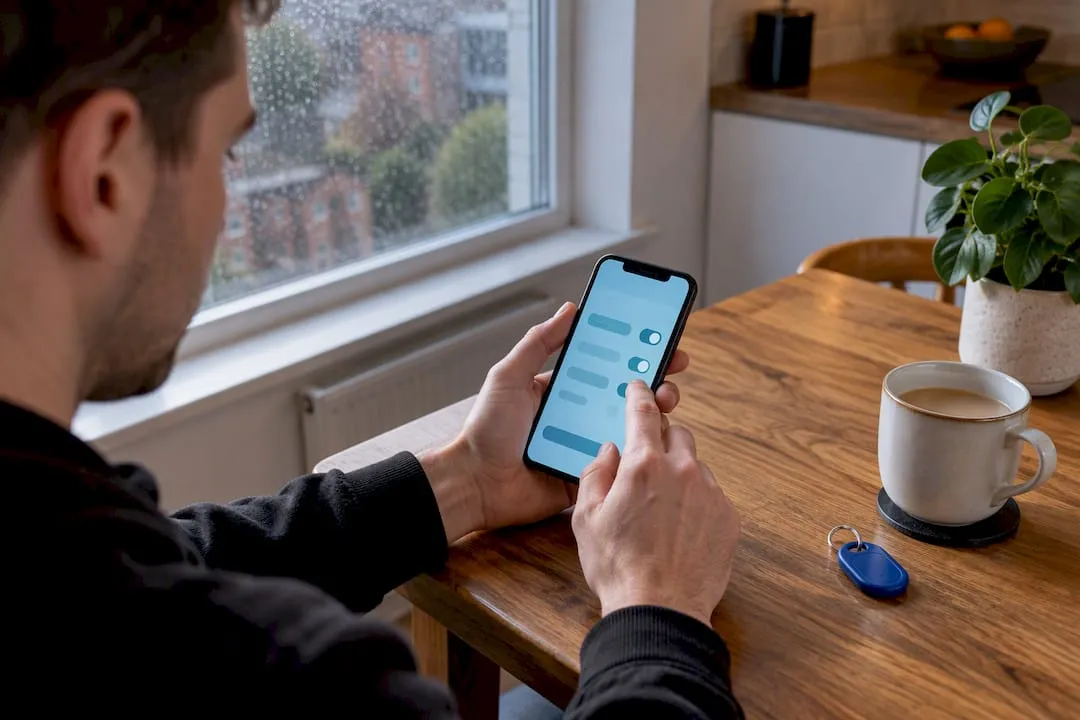
You can set job alerts on Securityjobsboard to receive UK security vacancies by email or mobile. Sign in or register, define your keywords and location, choose how often you want updates, then confirm the alert. Once it’s active, matching roles land in your inbox or on your phone without you having to search the site every day.
TL;DR:
- Using specific role titles and license requirements in keywords improves alert relevance and reduces irrelevant notifications.
- Broad location settings increase the volume of results but may include less relevant roles, while narrow settings filter for more targeted opportunities.
- Adjust your alert criteria after initial results to better match the roles you actually want, rather than sticking with initial broad settings.
- Creating multiple narrow alerts for different role types is more effective than one generic alert to avoid being overwhelmed by mismatched listings.
- Regularly reviewing and updating your alert preferences ensures you receive timely, accurate job matches aligned with your evolving job search.
Table of Contents
- Setting up your alert step by step
- Writing keywords that actually match security roles
- Keeping your alerts accurate over time
- How your data is handled under GDPR
- Why the platform’s focus matters for alert accuracy
- What actually matters when you set up an alert
- Reaching candidates who’ve already set alerts
- Where to go next
- FAQ
Setting up your alert step by step
Getting your first alert running takes a few minutes. The process is the same whether you’re a former SIA-licensed door supervisor looking for a change or a CCTV operator seeking your next contract.
- Register or sign in at Securityjobsboard. If you’re new, you’ll need an email address and a password.
- Upload your CV and confirm your email address. This step also verifies your account, which matters later if alerts stop arriving.
- Run a search first. Use the search bar to look for a role type, such as “keyholding” or “mobile patrol officer”, and set your location.
- Save the search as an alert. On both desktop and mobile, this option sits near the search results, usually as a button labelled to save or follow that search.
- Choose your delivery method and frequency. Email is standard, and mobile notifications are available where enabled on your account.
- Confirm the alert. You should see an on-screen confirmation and receive a confirmation email shortly afterwards.
- Test it. Run the same search manually a day later to check the results match what your alert sent you.
If you don’t receive the confirmation email within a few minutes, check your spam folder before assuming something’s wrong. The platform’s guidance on creating job alerts walks through the same basic sequence, though the specific menus will reflect Security Jobs Board’s own layout rather than a generic job board.
Pro Tip: Set up your alert straight after uploading your CV, so your profile is complete before any recruiter clicks through from a notification.
Once the alert is live, you can create more for different role types or locations rather than trying to capture everything in one search. A guard alert and a control room alert will need different keywords, and separating them keeps each one relevant.
Writing keywords that actually match security roles
Generic search terms bring generic results. The security sector has enough specific job titles and qualifications that a bit of care at this stage saves you from wading through irrelevant alerts every week.
- Use exact role titles such as “security officer”, “CCTV operator”, “keyholder” or “door supervisor” rather than broad terms like “security”.
- Include licence types where relevant, such as “SIA licence” or “SIA door supervisor”, since many employers list this as a requirement in the advert itself.
- Add seniority markers like “team leader” or “supervisor” if you’re past entry-level roles, so junior listings don’t clog your alert.
- Combine a role with a setting, such as “retail security officer” or “construction site security”, to narrow results without missing genuine matches.
- Exclude terms you don’t want using minus signs or exclusion filters where the search allows it, for example ruling out “unarmed combat” listings if you’re not interested in that niche.
For location, decide whether you want national coverage or a local radius. A jobseeker open to relocating across the UK should leave location broad, while someone tied to a specific town should set a tight radius and accept fewer, more relevant alerts. The blog’s guidance on effective job alerts for security roles covers similar keyword thinking in more detail.
On frequency, instant alerts suit anyone actively job hunting, since security vacancies can fill quickly. A daily or weekly summary works better if you’re only casually browsing and don’t want your inbox full of single-job emails.
Pro Tip: Review your alert’s results after the first week. If most of them miss the mark, tighten your keywords rather than abandoning the alert altogether.
Keeping your alerts accurate over time
Alerts aren’t fixed once you set them. Your account settings let you adjust, pause or remove them as your job search changes.
- Find your alerts in your account dashboard, usually under a section labelled alerts or saved searches.
- Edit an alert by changing its keywords, location or frequency if you’re getting too many or too few results.
- Pause an alert if you’re taking a break from job hunting but don’t want to lose your saved settings. 7 essential setup tips cover similar troubleshooting steps in more depth.
- Delete an alert entirely once you’ve found a role or no longer need that search.
- Troubleshoot missed alerts by checking your spam folder first, confirming your email address is correct in your account, checking mobile notification permissions if using an app, and confirming your account is fully verified.
If you’re searching for more than one type of role, such as both static guarding and CCTV monitoring, it’s usually better to run two narrow alerts rather than one broad one. Narrow alerts are easier to fine-tune and less likely to swamp you with mismatched results.
How your data is handled under GDPR
Security Jobs Board states that GDPR compliance is a priority across the platform, which means your personal details, CV and alert preferences are handled with data protection rules in mind rather than shared freely.
- Your CV and profile details are used to match you with relevant vacancies, not sold on to unrelated third parties.
- You can contact support to request that your data be removed or corrected if you no longer want an account.
- Confirmation emails usually include links to privacy settings or the platform’s terms of use, worth checking if you want full detail on how your information is stored.
If you’re ever unsure what an alert email is doing with your data, that terms page is the place to check rather than guessing.
Why the platform’s focus matters for alert accuracy
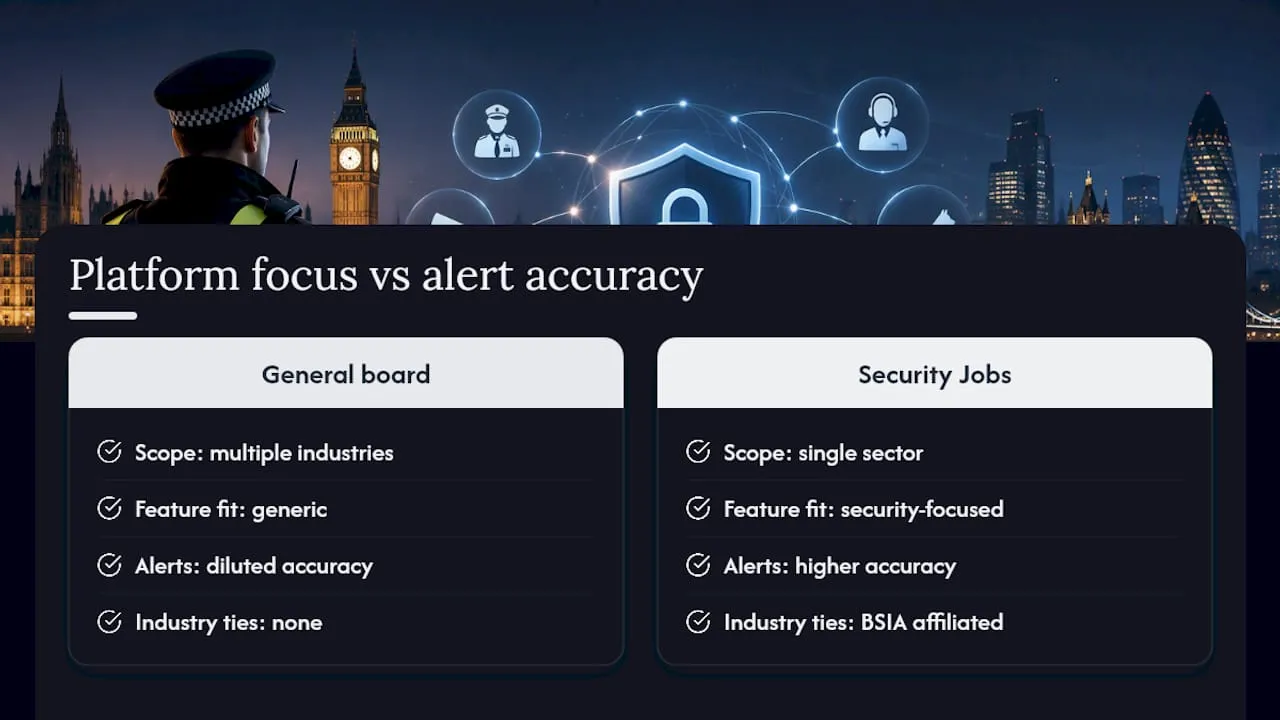
A general job board spreads its features across every industry, which dilutes how well its alerts understand security-specific terms like keyholding or SIA licensing. Security Jobs Board’s features, including candidate profiles, CV uploads, quick apply and mobile responsiveness, are built around a single sector, so the matching logic behind alerts has less noise to filter through.
The platform states an affiliation with the British Security Industry Association, which adds a layer of credibility that generic boards can’t claim, since it ties the site to an established industry body rather than a broad, unaffiliated marketplace.
Alerts only work as well as the platform behind them understands the industry they’re serving.
— Rob
What actually matters when you set up an alert
Most advice on job alerts focuses on the mechanics: click here, tick this box. That’s necessary but not the part that decides whether the alert is useful six weeks from now. The real work is in the keywords, and most people under-invest there because it feels like a five-minute afterthought rather than the core of the whole system.
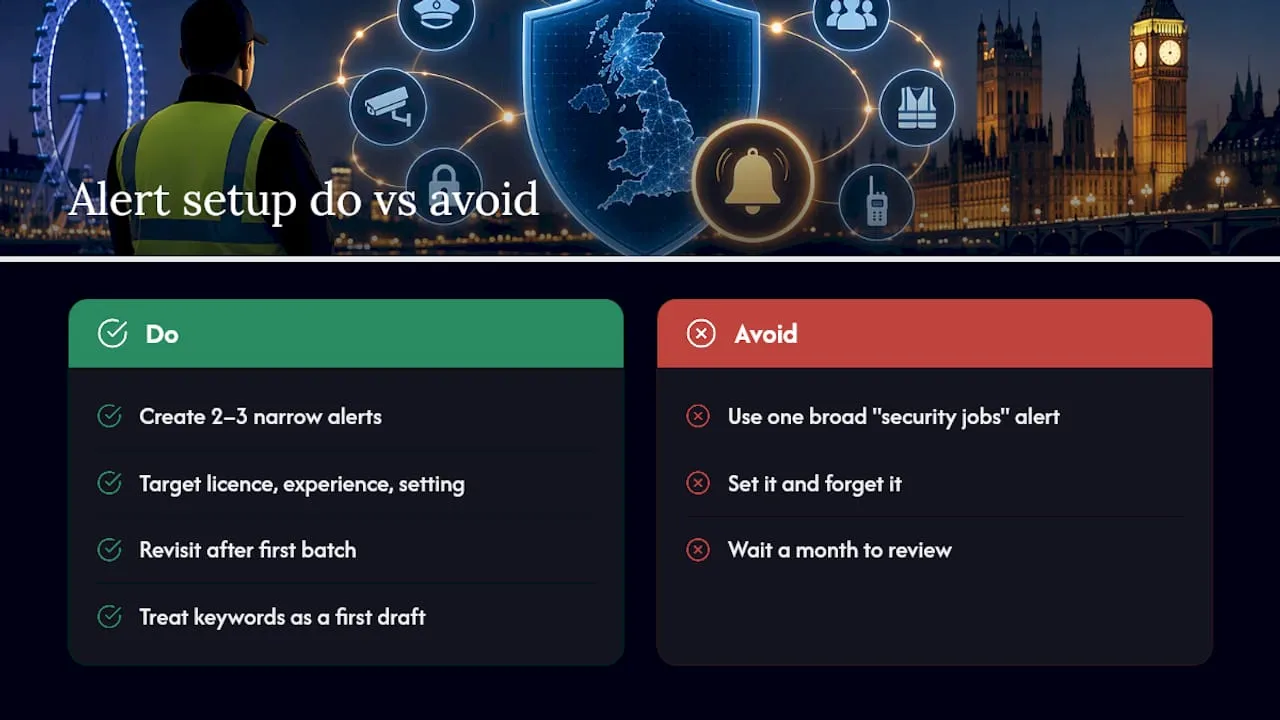
A single broad alert for “security jobs” will always underperform two or three narrow ones built around your actual licence, experience and preferred setting. The conventional shortcut, setting one alert and forgetting it, tends to produce a slow drip of irrelevant listings that people eventually mute rather than fix.
If you take one thing from this: revisit your alert settings after your first batch of results, not after a month of frustration. Treat the keywords as a first draft, adjust once you see what actually comes through, and you’ll spend far less time deleting emails you never wanted.
— Rob
Reaching candidates who’ve already set alerts
If you’re hiring for security roles, posting where alerted candidates will actually see the listing matters more than posting everywhere at once. Security Jobs Board’s employer pages cover Standard listings, Featured ads and Multi-role campaign packages, each aimed at getting your vacancy in front of jobseekers who’ve already told the platform what they’re looking for.

- Post a role through Standard listings or Featured ads to reach candidates whose saved alerts match your criteria.
- Use Multi-role campaign packages if you’re hiring across several positions, such as guarding and supervisory roles, at once.
- Some members may receive preferential terms on packages, which is worth confirming when you enquire.
Visit Security Jobs Board’s employer pages to see current packages and get your vacancy live.
Where to go next
- For deeper keyword guidance, see the blog on top job alert tools for security recruiters.
FAQ
How do I create a job alert on Security Jobs Board?
Sign in or register at Securityjobsboard, run a search using your preferred keywords and location, then save that search as an alert. You’ll receive a confirmation once it’s active, with results delivered by email or mobile.
Can I set up more than one job alert?
Yes, you can create separate alerts for different role types or locations, such as one for CCTV operator roles and another for keyholding positions. Running narrower alerts side by side usually produces more relevant results than one broad alert covering everything.
Why am I not receiving my job alert emails?
Check your spam or junk folder first, since alert emails are sometimes filtered there by mistake. Also confirm your email address is correct in your account settings and that your account has been fully verified.
Does Security Jobs Board share my data with other companies?
Security Jobs Board states that GDPR compliance is a priority, meaning your CV and profile details are used for matching you with roles rather than shared freely with unrelated third parties. You can contact support directly if you want to request data removal.
How do I stop or delete a job alert I no longer need?
Go to the alerts section of your account dashboard, where you can pause an alert temporarily or delete it entirely. This keeps your inbox focused on searches you’re still actively using.


