How to create job alerts on Indeed: a step-by-step guide

You can create an Indeed job alert in under two minutes: sign in to your account, run a search for the role you want, and select “Get job alerts” or “Activate” beneath the results. Indeed then emails you whenever a matching vacancy appears.
Two things need to happen before anything else works. First, sign in or create an Indeed account, because alerts cannot be saved to a guest browsing session. Second, run a proper search using a job title and a location, since the alert button only appears once you have results on screen. For security-sector jobseekers, a specialist board such as Securityjobsboard, which carries a BSIA affiliation, is worth pairing with Indeed for sharper results.
- Sign in to Indeed (or register a free account).
- Search a role and location, then activate the alert on the results page.
Key takeaways
Creating an Indeed job alert takes three steps: sign in, search a role and location, then activate the alert, after which you manage frequency and edits through your communications settings.
| Point | Details |
|---|---|
| Account required | You must be signed in to Indeed to create, edit, or receive any job alert. |
| Activate after searching | The alert option appears at the bottom of the results page once you’ve searched a role and location. |
| Manage through settings | Edit, pause, delete, or change frequency for any alert via My Jobs or communications settings. |
| Fix delivery issues fast | Check spam folders, safe senders, and account email before assuming an alert has failed. |
| Add a specialist layer | Securityjobsboard complements Indeed with security-sector filters and a BSIA-affiliated candidate pool. |
Table of Contents
- How to create job alerts on Indeed via the website
- Setting up job alerts on the Indeed mobile app
- Managing job alerts on Indeed: edit, pause, or delete
- How do I set alerts for a specific company or remote roles?
- Why aren’t my Indeed job alerts arriving?
- Tips to make your Indeed job alerts more useful
- Indeed alerts versus specialist boards: which should you use?
- Get sharper alerts for UK security roles
- Sources
- FAQ
How to create job alerts on Indeed via the website
The desktop and mobile browser process is identical, and it takes roughly the same steps every time. Start by signing in, since Indeed requires an account to start, stop, or manage Job Alerts.
- Go to Indeed and sign in.
- Type your job title or keyword into the “what” box, and your city, postcode, or “remote” into the “where” box.
- Click Search.
- Scroll to the bottom of the first page of results, where you’ll find a field to activate job alerts. Confirm your email if prompted.
- Choose how often you want emails: alerts can be set to daily or weekly delivery, and you can repeat the process to build several alerts around different searches.
Before you activate, it’s worth tightening the search itself. Fields worth adjusting include:
- Keywords (job title, skill, or licence type)
- Location and search radius
- Job type (full-time, part-time, contract)
- Estimated salary range
- Remote toggle
Pro Tip: Run the search exactly as you want the alert to match before you click activate. Editing keywords after the alert exists is more fiddly than getting the search right the first time.
Setting up job alerts on the Indeed mobile app
The app follows the same logic as the website, just with a slightly different layout. Open the Indeed app and sign in with the same account you use on desktop, since alerts don’t transfer between separate logins.
- Search using a job title and location, the same as on the website.
- On the results screen, tap the Get job alerts toggle or button.
- Confirm the alert. You’ll get a short confirmation message on screen.
The app adds one extra layer: alongside email, you can receive push notifications, provided your device settings allow them. Worth checking:
- Notifications are enabled for the Indeed app in your phone’s settings
- Your email address in the app matches the one you check regularly
- You haven’t accidentally created a duplicate alert by searching the same terms twice
The main practical difference from web is placement. The alert toggle sits directly on the results screen in the app, rather than at the bottom of the page as it does on a browser.
Managing job alerts on Indeed: edit, pause, or delete
Every alert you create lives inside your account, not your inbox, so changes have to be made while signed in. Existing alerts sit under My Jobs or your communications settings, sometimes labelled job and company alerts depending on the version of the site you’re using.
From there, you can:
- Edit an alert by tapping the pencil or edit icon to change keywords, location, or filters
- Pause an alert temporarily using the toggle switch, without deleting the search itself
- Delete an alert entirely with the trash or remove icon
- Change frequency between daily and weekly for any individual alert
- Add new alerts alongside existing ones, since Indeed lets you run multiple alerts at once
Your communications settings are the central place to control how Indeed contacts you, including whether alerts arrive at all. If you stop getting emails but haven’t deleted anything, check there first.
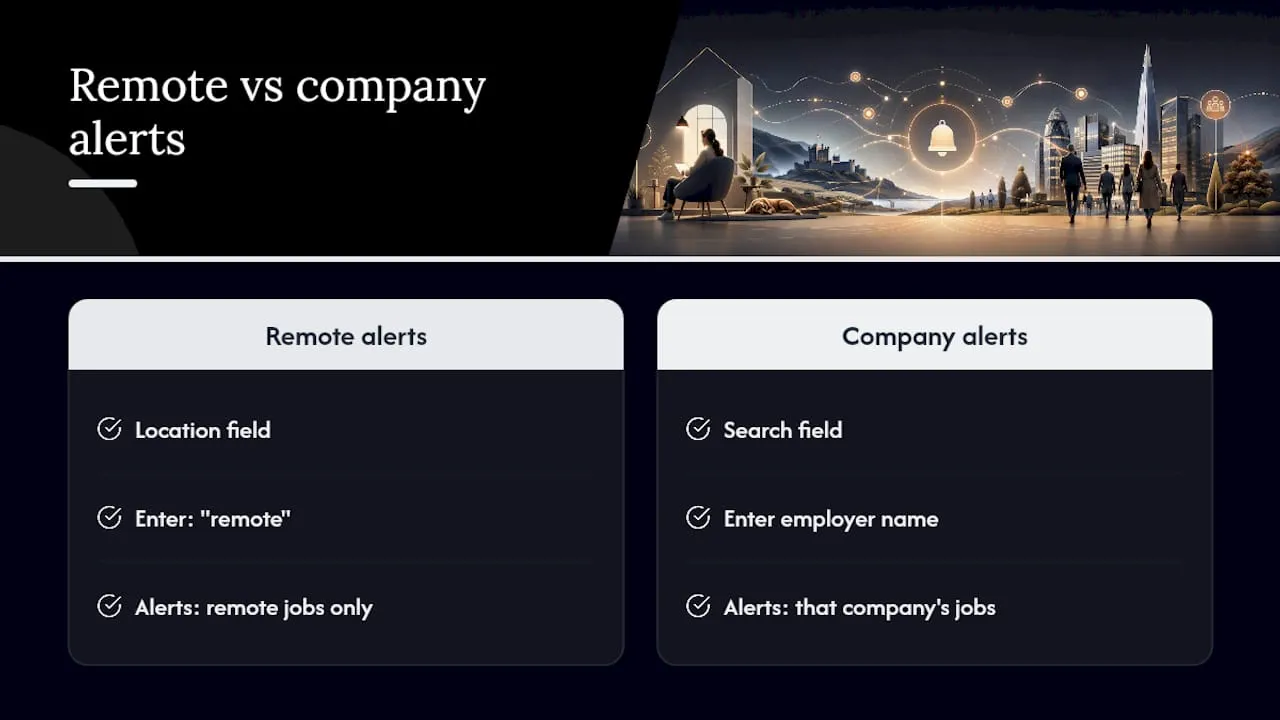
How do I set alerts for a specific company or remote roles?
Targeted alerts cut down the noise considerably, and they take barely longer to set up than a generic search.
For a company-specific alert, search using the employer’s name in the “what” field, then activate the alert as usual. You’ll get notified only when that employer posts something new.

For remote work, type “remote” into the location box, or add it as a keyword alongside your job title. Combining both often produces the tightest results.
For security roles, useful search terms include:
- “CCTV operator” plus a city or postcode
- “Door supervisor” plus “remote” or a specific region
- “Mobile patrol” with a minimum salary filter applied where available
Wrapping exact phrases in quotation marks stops Indeed matching loosely related terms, and adding a salary floor filters out roles that would waste your time.
Why aren’t my Indeed job alerts arriving?
Missing alerts are usually a settings problem rather than a technical fault. Work through these in order:
- Check your spam or junk folder, and add Indeed’s sending address to your safe senders list.
- Confirm the email address on your Indeed account is correct and one you check regularly.
- Check the alert hasn’t been paused or deleted under your communications settings.
- Confirm the frequency is set to daily or weekly, not accidentally switched off.
A few other things worth ruling out:
- Corporate or work email accounts often block automated senders; a personal email tends to be more reliable
- Aggressive email filters or rules can silently redirect Indeed’s messages
- Creating alerts while searching internationally can fail outright, since Indeed ties alerts to a specific regional site
Tips to make your Indeed job alerts more useful
Broad alerts feel productive but usually just create inbox clutter. Sharper alerts do more work with less effort.
- Pair specific keywords with a location or “remote” rather than searching a job title alone
- Build separate alerts for entry-level and senior versions of a role instead of one that catches both
- Filter by job type or salary estimate to strip out mismatched postings before they reach your inbox
- Refresh alerts every few months as your search terms or target roles shift
Pro Tip: Email alerts cover the bulk of new postings, but a browser plugin or a weekly manual check catches the odd role that slips through filters. Treat these as backup, not a replacement.
Indeed alerts versus specialist boards: which should you use?
Indeed wins on volume and speed. It indexes postings from across the entire jobs market, which makes it the right tool for broad discovery.
Specialist boards close the gap on relevance. A sector-focused platform such as Securityjobsboard filters for security-specific employers and licensing requirements that a general board doesn’t distinguish between.
- Breadth: Indeed, by a wide margin.
- Relevance for security roles: a specialist board, because filters and employer pools are pre-sorted for the sector.
- Best approach: run both, and let each catch what the other misses.
Get sharper alerts for UK security roles
Securityjobsboard is the specialist alternative to a general job site for security-sector alerts: instead of wading through postings for every industry, you get notifications built around door supervisor, CCTV, and mobile patrol roles from employers who actually specify SIA licensing and shift patterns.

The site carries a BSIA affiliation, which gives employers and jobseekers a shared trust signal that Indeed’s generic listings don’t offer, and every profile and CV upload stays GDPR-compliant. If you’re based in Northern Ireland or job-hunting there, browse security jobs in Northern Ireland directly, or head to Securityjobsboard to set up a free alert tailored to your role, licence, and region.
Sources
- Starting, stopping and managing Job Alerts
FAQ
How do I create job alerts on Indeed?
Sign in to your Indeed account, search for a job title and location, then select “Get job alerts” or “Activate” at the bottom of the results page.
How do I manage job alerts on Indeed?
Open your communications settings or the My Jobs section while signed in, where you can edit, pause, delete, or change the frequency of any alert.
How do I turn on job alerts on Indeed?
Run a search, then use the activation field on the results page to switch alerts on; you’ll need an Indeed account to complete the step.
Can I create alerts for remote or company-specific security roles?
Yes. Type “remote” into the location field for remote alerts, or search an employer’s name directly to get notified only about that company’s postings.
Why am I not receiving my Indeed job alerts?
Check your spam folder, confirm your account email is correct, and verify the alert hasn’t been paused, since these cover most delivery failures.


