Website Security Checklist: 20 Checks for UK Site Owners

A good website security checklist starts with who can get in, then covers what is exposed, what is out of date, what attackers can submit, and how fast you can recover. Work through the 20 checks below in that order. Most take under an hour each, and the first six remove the bulk of everyday risk. In the UK you also have a legal angle: if your site handles personal data, the UK GDPR expects you to protect it with measures that suit the risk.
We run a UK job board where candidates upload CVs and employers manage accounts, so we treat this list as working practice, not theory.
TL;DR
- Fix access first: multi-factor authentication (MFA) on every admin account, unique strong passwords, and the fewest possible admin users.
- Enforce HTTPS sitewide, then patch software and remove plugins you do not use.
- Treat every form field and file upload as untrusted input.
- Keep tested backups stored away from the live server, and keep logs someone actually reads.
- Review the list at least quarterly, and after any change of developer, host or staff.
Table of Contents
- Why this order works
- Group 1: Accounts and access
- Group 2: HTTPS, DNS and server settings
- Group 3: Software, plugins and dependencies
- Group 4: Forms, uploads and user input
- Group 5: Backups, monitoring and recovery
- Group 6: Your UK legal duty
- Quick reference: what to do first
- How often to review the checklist
- Security is also a people question
- Perspective
- Hiring someone to own your security
- FAQ
- Sources
Why this order works
Most checklists you will find list 9 to 12 items with no ranking. That is fine for a skim, but a small team needs to know what to do on Monday morning. One 2026 checklist argues for a priority stack that puts access and exposure controls ahead of software and traffic controls, because they give the highest payoff for the effort. We have followed that logic: people and doors first, then the building, then the alarms.
The checklist below is split into six groups. Tick each item honestly. “Probably” counts as no.
Group 1: Accounts and access
1. Switch on MFA for every administrator
The Australian Cyber Security Centre advises MFA for accounts with administration privileges, and strong passwords where MFA is not available. CISA likewise recommends enforcing MFA on internet-accessible accounts. Authenticator apps or hardware keys are a better choice than text messages where your platform allows.
2. Use a unique, strong password for every user
A password manager removes the excuse. Shared logins such as “admin@” used by three people make it impossible to know who did what, and impossible to cut off one person cleanly.
3. Give people only the permissions their role needs
The same Australian guidance says to limit admin access to those who need it, grant only the privileges the role requires, and remove access when it is no longer needed. A content editor does not need to install plugins. A freelancer does not need access after the project ends.
4. Rename or remove default accounts
If your CMS shipped with an “admin” username, replace it. Attackers try the obvious names first.
5. Limit login attempts and add a CAPTCHA to forms
The Digital Defense Fund suggests protecting all forms with CAPTCHA. Rate limiting on the login page slows automated guessing too.
6. Keep an access register
Write down who holds which account, where the domain is registered, where the site is hosted and how to renew the certificate. The Digital Defense Fund recommends keeping this information somewhere secure that more than one member of staff can reach. If the one person who knows the registrar login leaves, you have a problem.
Group 2: HTTPS, DNS and server settings
7. Enforce HTTPS on every page
Redirect all HTTP requests to HTTPS and make sure no page loads images or scripts over plain HTTP. Encryption protects logins, forms and session cookies as they travel.
8. Turn on HSTS and retire weak protocols
CISA advises enforcing HTTPS with HSTS, disabling weak protocols and ciphers such as SSLv2 and SSLv3, and monitoring certificate-transparency logs for certificates issued in your name that you did not request. Your host or developer can check this in minutes.
9. Calendar your certificate expiry
An expired certificate throws a browser warning that scares visitors off. Automatic renewal is ideal, but add a reminder anyway and note the renewal route in your access register.
10. Review registrar and DNS records
CISA recommends reviewing registrar and DNS records and locking the domain account with MFA. Hijacked DNS lets someone redirect your visitors without touching your server at all.
11. Harden the server and separate its parts
The Canadian Centre for Cyber Security recommends segregating web service components and using proxy servers and web application firewalls. On managed hosting, ask your provider what they already do rather than assuming.
Group 3: Software, plugins and dependencies
12. Keep everything updated, on a stated timeline
McGill University’s web team tells site owners to keep all software components updated and use a web application firewall. Set a rule so nobody has to guess. One guide suggests applying critical security patches within 24 to 48 hours, while CISA’s figure for critical vulnerabilities is within 15 days of discovery. Pick a timeline you can really meet and write it down.
13. Test updates before they go live
Test on a staging copy that mirrors production. Automatic updates help with security patches, but they should be paired with monitoring and rollback because an update can break something your business relies on. On WordPress, back up first and deactivate incompatible plugins before updating.
14. Delete what you do not use
Unused plugins, themes and libraries are open doors with nobody watching them. The same guide that advises staging also says to remove unused components to shrink the attack surface. Avoid abandoned plugins whose code is no longer maintained.
15. Vet third-party code before installing it
Google’s web.dev guidance recommends evaluating the security practices of third-party software and plugins before installation. Check when it was last updated, how many sites use it and whether the author responds to reports. For anything critical, combine scanning tools with human code review.
Group 4: Forms, uploads and user input
16. Never trust data from the browser
MDN states the principle plainly: all user-originating data must be sanitised before it is displayed or used in system calls. Every contact form, search box, login field and URL parameter counts.
17. Block injection and cross-site attacks, and set security headers
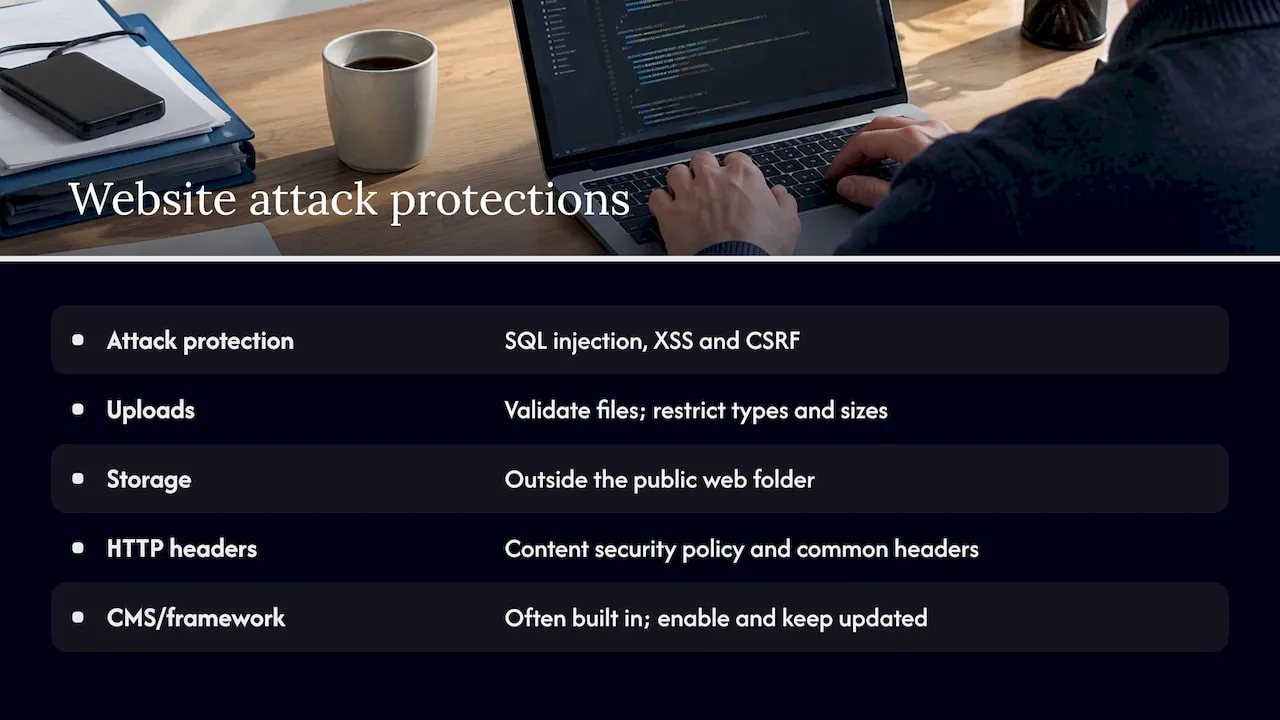
McGill’s guidance lists protection against SQL injection, cross-site scripting (XSS) and cross-site request forgery (CSRF), validation of uploaded files, and a content security policy plus other common HTTP security headers. If you use a mainstream CMS or framework, these protections are often built in, but only when they are switched on and up to date.
File uploads deserve special care. A site that accepts CVs, for example, should restrict file types and sizes, and store uploads outside the public web folder.
Group 5: Backups, monitoring and recovery
18. Back up, store copies elsewhere, and test the restore
McGill advises regular backups of content, configuration and operating systems, with recovery tested. One 2026 checklist suggests testing backups at least quarterly and keeping a recoverable copy that is not reachable only from production. A backup you have never restored is a hope, not a plan.
19. Watch your logs and have an incident plan
McGill’s guidance also covers monitoring web server and application logs, keeping an incident response plan, and running regular vulnerability scans and penetration tests. Your plan can be one page: who decides, who calls the host, who tells customers, and who reports to the regulator if personal data is affected.
Group 6: Your UK legal duty
20. Match your security to the personal data you hold
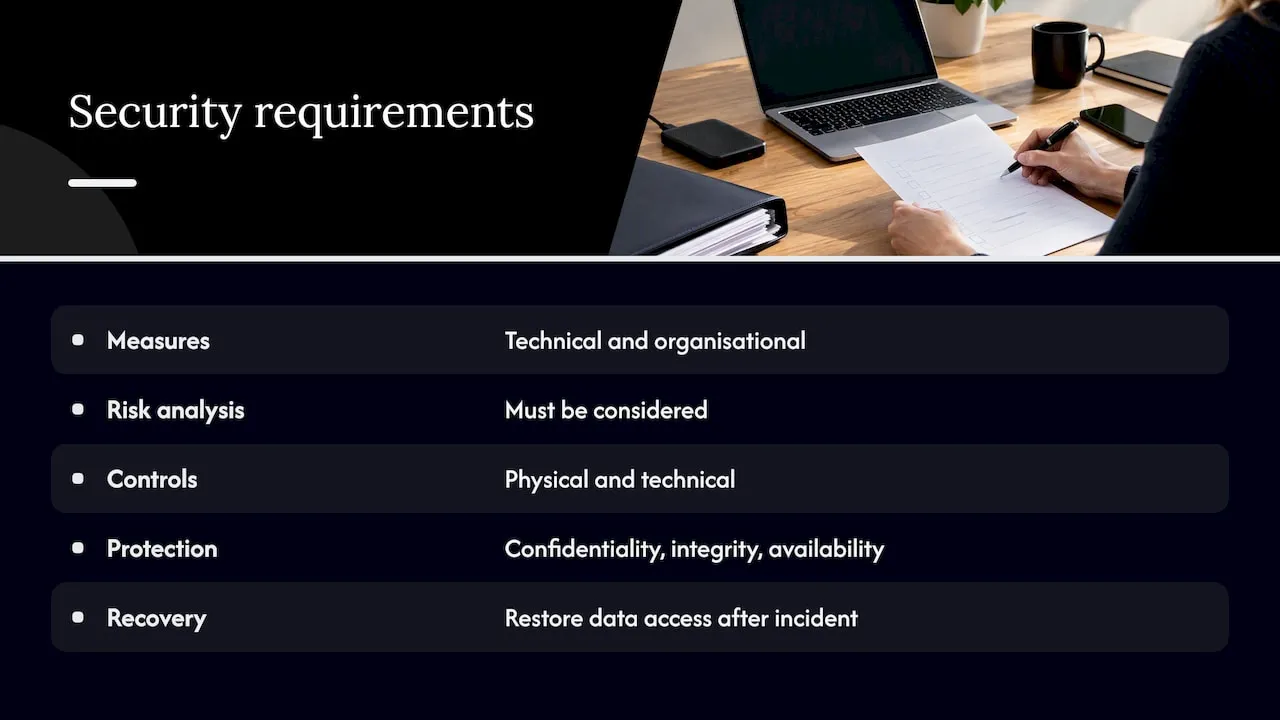
The ICO explains that the UK GDPR security principle requires appropriate technical and organisational measures, including considering risk analysis, policies and physical and technical controls. It also expects measures that protect confidentiality, integrity and availability, and that let you restore access to personal data after an incident. In practice, that is exactly what checks 1 to 19 deliver. If you suffer a breach involving personal data, speak to your data protection lead or take advice from the ICO’s published guidance on reporting.
Quick reference: what to do first
| Priority | Check | Typical effort |
|---|---|---|
| Today | MFA on admin and hosting accounts (1) | 30 minutes |
| Today | Remove unused users and plugins (3, 14) | 1 hour |
| This week | HTTPS, HSTS, certificate reminder (7 to 9) | 1 to 2 hours |
| This week | Backup copy off the server, restore test (18) | 2 hours |
| This month | Update policy and staging process (12, 13) | Half a day |
| This month | Forms, uploads and headers reviewed (16, 17) | Developer time |
| Quarterly | Full review of this list, backup test, access register | 2 to 3 hours |
How often to review the checklist
Run the whole list at least quarterly, matching the quarterly backup test above. Add an ad hoc review whenever you change developer, host or CMS, when a staff member with admin access leaves, and when you add a new form or payment step. Security drifts: a clean site in January can have three forgotten plugins by June.
Security is also a people question
Tools only go so far. Someone has to own the list, run the reviews and answer the phone when something looks wrong. For organisations that run physical sites as well as websites, the same discipline applies offline, and our guides on preventing physical security incidents and how security checks work in the UK show how to build routines that stick. If you are bringing in staff who will hold admin rights, a secure background check checklist and a staff onboarding checklist help you grant access carefully from day one.
Perspective
Every website security checklist ends in the same place: a named person with the right skills who owns it. Tools flag problems, but people decide what to fix first, who gets access and what happens at 2am when something breaks.
That is why we built Security Jobs Board around the security industry alone. Candidates create a profile, upload a CV, set alerts and apply, all free. Employers reach people who work in security every day, and our BSIA affiliation gives both sides a credible, UK-focused home for hiring. Our design aims for speed, GDPR compliance and mobile use, with human support if you need it.
If your checklist shows a gap in skills, not just settings, hiring the right person is the strongest fix on the list.
Rob
Hiring someone to own your security
If working through this list shows you need a dedicated pair of hands, from a security systems engineer to a manager who runs your compliance routines, you can advertise on a board that security professionals already use. Employers can choose standard listings, featured ads or multi-role campaign packages, or open the main site to post a job and see CV access options. Pricing is not published on the pages, so check the employers page for current details. Our BSIA affiliation also brings discounts for BSIA members.

Jobseekers can browse current vacancies and set up alerts for free at www.securityjobsboard.co.uk.
FAQ
What is the most important item on a website security checklist?
MFA and tight access control come first. Stolen or weak credentials are a common way in, and fixing them takes under an hour. Both the Australian and US guidance cited above put MFA for admin accounts near the top of their recommendations.
How long does it take to secure a small website?
The urgent items (MFA, removing unused accounts and plugins, a backup copy) can be done in a day. HTTPS and HSTS take a further couple of hours. The remaining work is mostly setting up routines, such as an update policy and a quarterly review.
Do I need to follow the UK GDPR for a small website?
If your site collects personal data such as names, emails or CVs, yes. The ICO says the security principle applies to how you process personal data, and the measures must suit your circumstances and the risk. A contact form alone counts as personal data collection.
Are automatic updates enough?
They help with security patches, but they are not a full strategy. Pair them with monitoring and the ability to roll back, because an update can break key functions. Test important changes on a staging copy first.
How often should I test my backups?
At least quarterly, according to the 2026 checklist cited above. Restore to a test environment and confirm that pages, forms and databases work. Keep one recoverable copy away from the live server.
Sources
- Secure your website, Australian Cyber Security Centre
- Website Security, CISA
- Security considerations for your website, Canadian Centre for Cyber Security
- Essential web security guidelines for site owners, McGill University
- Website Security Checklist, Digital Defense Fund
- A guide to data security, ICO
- Website security, MDN
- Clean and maintain your site, web.dev
- Customer responsibility for threat mitigation, WPVIP
- Keep your CMS, frameworks and libraries updated
- Website Security Best Practices, ViWeb Technology
- WordPress security checklist, Hostinger
- Web Security Best Practices: 2026 Checklist, Tech Help Canada


